Remote Desktop Protocol (RDP) is Microsoft’s Remote Desktop Protocol that lets users access and control a remote computer securely from another device.
RDP means Remote Desktop Protocol, a Microsoft-developed technology that lets a user access and control another computer through a graphical desktop interface.. It gives the user a graphical desktop view of the remote machine, making it possible to work with its files, applications, and settings without being physically present.
Across Windows computers, Windows Server environments, cloud virtual machines, and enterprise IT systems, this protocol provides more than basic file access. It creates an interactive remote workspace where the local device becomes the access point and the remote machine handles the actual processing.
Because RDP can open a path into business systems, identity controls, permissions, and credential security matter. CloudSEK’s 2026 Operation Escaneo report mapped Remote Desktop Protocol under credential-based lateral movement, showing how exposed or harvested credentials can turn remote access into a sensitive attack pathway.
How Do RDP Attacks Work?
RDP works by linking a local client with a remote host over a network, commonly through port 3389, then carrying authentication details, encrypted data, user commands, and screen updates between both systems.
Client Request: From a local device, a user enters a computer name, IP address, or gateway address into an RDP client. Microsoft Remote Desktop or Remote Desktop Connection then contacts the target environment.
Network Route: Port 3389 commonly handles RDP communication, with TCP supporting reliable delivery and UDP sometimes improving responsiveness. Firewalls, VPNs, Remote Desktop Gateway, or Zero Trust policies decide whether that connection is allowed through.
Host Preparation: A Windows computer, server, or virtual machine configured for RDP receives the request and prepares the desktop environment. System settings define allowed users, available resources, and connection behaviour.
Identity Check: Login credentials confirm whether the user has permission to enter the environment. Network-level authentication can verify identity before a full desktop view opens, reducing unnecessary exposure to system resources.
Protected Session: Encryption protects data exchanged between both endpoints after access is approved. Screen content, keyboard activity, mouse actions, clipboard use, file movement, and redirected devices move through that protected channel.
Input Relay: Keyboard commands, pointer movement, audio signals, printer requests, drive access, and other redirected resources travel from the client side to the target machine. Processing stays on the accessed system, while the local device acts as the control point.
Screen Updates: Visual changes generated by the accessed machine return to the user’s screen as desktop updates. Continuous exchange between user actions and visual output creates the experience of working on another computer in real time.
What Are the Main Components of an RDP Connection?
A reliable RDP session depends on several layers working together, from the client device and host machine to authentication, encryption, bandwidth, and resource controls.
RDP Client Device
An RDP session usually starts from a laptop, desktop, tablet, phone, or administrator workstation. The client device becomes the user’s control point, sending keyboard actions, mouse movement, and screen interaction across the network.
RDP Host Machine
The host machine is the remote computer being accessed, such as an office PC, Windows Server, cloud virtual machine, or workstation. Applications run, files remain stored, and configuration changes happen on that machine rather than the local device.
Network Ports
Network communication needs a defined route before any desktop view can appear. Port 3389 is commonly associated with RDP, with TCP supporting reliable delivery and UDP improving responsiveness in sessions.
Bandwidth
Responsiveness depends heavily on available network capacity. Reading logs or adjusting server settings may require little bandwidth, while multiple monitors, high-resolution displays, file movement, audio, video, and redirected devices can slow the experience.
Graphics Rendering
Visual quality depends on screen changes being processed, compressed, and delivered to the client. GPU acceleration can improve high-resolution desktops, dashboards, design tools, video, and graphics-heavy workloads under host and session settings.
Authentication
Authentication confirms who is allowed to open the remote desktop. Passwords, domain accounts, Network Level Authentication, and multi-factor authentication help restrict entry to authorized users.
Encryption
Encryption protects information moving between the client and host, including credentials, keystrokes, clipboard content, file activity, and administrative actions.
Clipboard and File Sharing
Copy-paste and file transfer often make remote work faster, especially for teams, administrators, and employees handling documents. Because those same features can move sensitive data or malicious files between environments, many organisations restrict them through policy.
Device Redirection
Local tools can be made available inside the accessed desktop for specific work needs. Printers, drives, smart cards, cameras, audio devices, and selected USB resources may be redirected, with unnecessary options usually disabled to reduce exposure.
What Are the Different Types of RDP Connections?
Remote Desktop connections are best understood by looking at the access path, hosting location, and session model behind them.
1. Direct RDP Connection
Direct RDP connects to a computer or server through a hostname or IP address. Within a trusted network, that path is simple to manage; exposed online, it gives scanners, password spraying, and stolen credential testing a visible login target.
2. RDP Over VPN
RDP over VPN places a private network layer in front of desktop access. Users connect to an approved network first, keeping the RDP service away from public reach.
3. Remote Desktop Gateway
Remote Desktop Gateway works as a managed entry point between remote users and internal desktops or servers. Security teams can enforce authentication, apply connection policies, direct traffic , and review logs from one layer instead of repeating those controls across every endpoint.
4. Cloud or Virtual Machine RDP
Cloud or Virtual Machine RDP applies when Windows desktops or servers run on Azure, AWS, private clouds, or data center infrastructure. Administrators use this model for patching, software installation, troubleshooting, and visual checks where a full desktop view gives more control than command-line work alone.
5. Multi-Session RDP
Multi-session RDP lets several users run separate sessions from the same server or virtual desktop platform. Remote Desktop Services, Azure Virtual Desktop, shared applications, and centralized workspaces use this model to simplify delivery and reduce dependence on individual physical machines.
What Is RDP Used For?
Remote Desktop Protocol is used to work on desktops, servers, and virtual machines from another location without being physically present near the device.
Remote work: Employees can open an office computer from home, a branch location, or another approved network. Business apps, documents, and personal settings remain on the work machine, keeping the environment familiar outside the office.
IT troubleshooting: Technical teams can view a user’s screen, adjust settings, install updates, and resolve errors without visiting the device. Direct visibility shortens diagnosis and reduces delays caused by back-and-forth explanations.
Server management: Windows Server administrators often connect from a secure workstation to handle routine system tasks. Patching, account changes, service checks, and configuration updates become easier through a graphical desktop.
Cloud administration: Cloud-hosted Windows virtual machines often require a desktop view during setup, monitoring, or maintenance. RDP gives administrators a visual way to manage those environments alongside command-line tools.
Shared business software: Some companies keep critical applications on controlled machines instead of installing them across many user devices. Approved employees can open those tools through a remote desktop session and work inside the same managed setup.
Managed IT services: Service providers use RDP to maintain client workstations, servers, and business systems across different locations. Remote connectivity reduces site visits and keeps routine maintenance more consistent.
What Are the Pros and Cons of Using Remote Desktop Protocol?
Remote Desktop Protocol can make remote work, server maintenance, and virtual machine access easier, but poor configuration can turn the same access into a security risk.
Pros of RDP
Cons of RDP
Gives users remote access to desktops, servers, and virtual machines from approved locations.
Publicly exposed RDP can become a target for scanning, brute-force attempts, and unauthorized login activity.
Provides a familiar graphical desktop experience instead of only command-line access.
Weak or reused credentials can make remote desktop access easier to compromise.
Helps IT teams troubleshoot, patch, configure, and maintain systems without physical access.
Poorly managed permissions can give users more access than they actually need.
Keeps applications and files on controlled machines rather than spreading data across multiple devices.
Clipboard sharing, file transfer, and device redirection can create data leakage or malware transfer risks.
Works well with Windows Server, cloud virtual machines, Remote Desktop Services, and virtual desktop setups.
Performance can suffer on weak networks, especially with multiple monitors, video, audio, or large file movement.
Can be secured with MFA, Network Level Authentication, VPNs, gateways, firewalls, encryption, and monitoring.
Missing patches, open ports, and limited logging can turn RDP into a serious attack surface.
What Are the Most Common RDP Vulnerabilities?
RDP vulnerabilities arise from exposed services, weak authentication, and misconfigured network controls that allow unauthorized access attempts to succeed.
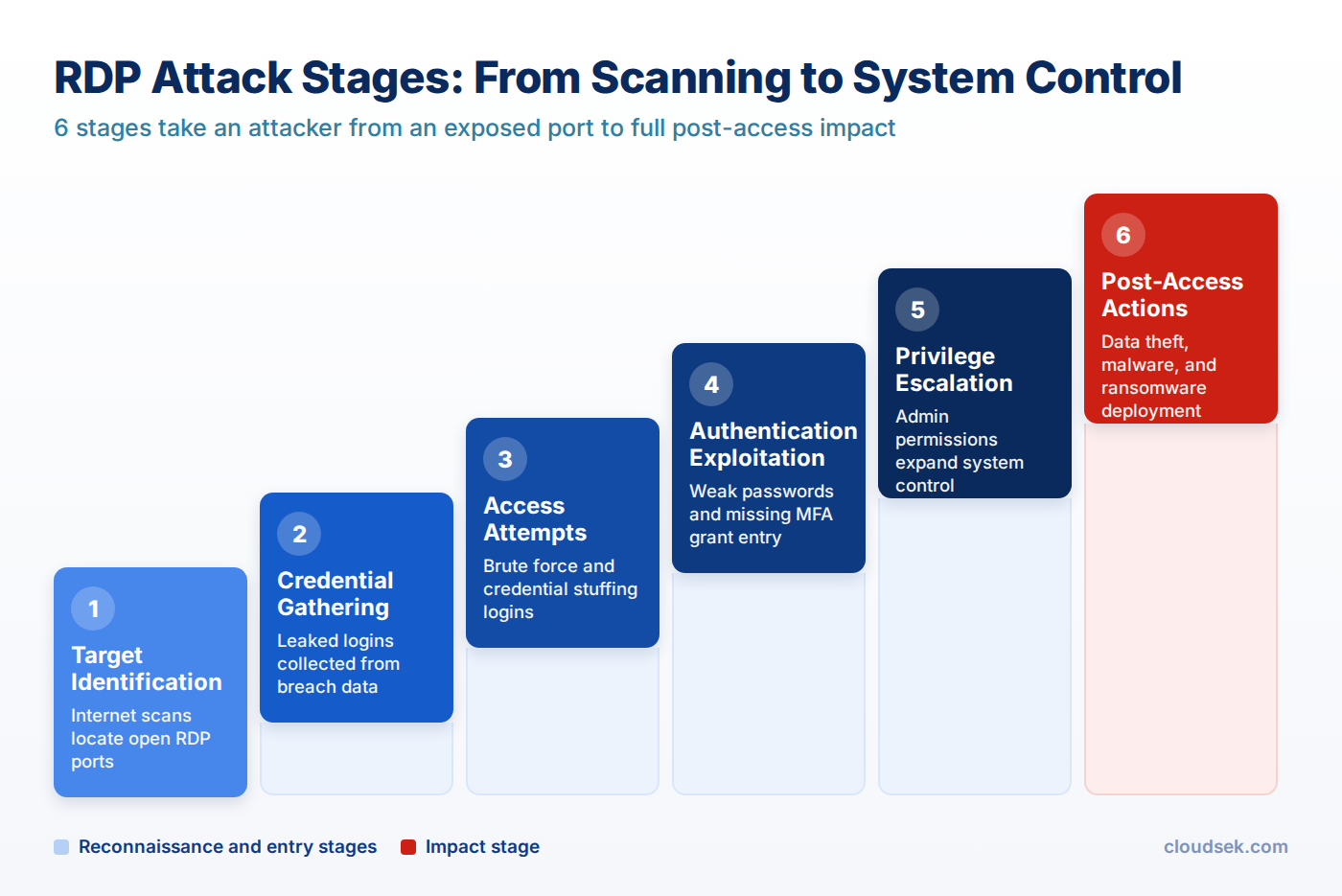
Weak Credentials. Weak or reused passwords increase exposure to brute force attacks and credential stuffing, where automated tools attempt large volumes of logins. Security research shows that leaked credentials from past breaches are frequently reused to gain access to RDP systems.
Port 3389. Default use of port 3389 makes RDP services easy to detect during internet-wide scans. Open ports act as visible entry points that attract continuous probing activity.
Missing MFA. Single-layer authentication allows access once valid credentials are obtained through brute force or credential-based attacks. Multi-factor authentication adds an additional verification step that blocks unauthorized logins even when passwords are exposed.
Open Firewall. Improper firewall configurations allow unrestricted external traffic to reach RDP services. Restricting access to trusted IP ranges helps limit unwanted connection attempts.
Unpatched RDP. Unpatched systems expose known vulnerabilities such as BlueKeep (CVE-2019-0708), which allow remote code execution without authentication. Delayed updates keep systems open to known exploit methods.
Public Exposure. Direct internet exposure increases visibility to scanning tools searching for vulnerable endpoints. Using private networks or VPN access lowers external visibility and limits attack surface.
How Can Weak RDP Access Turn Into a Security Threat?
Mismanaged RDP can turn a routine desktop connection into a pathway for intrusion, persistence, privilege escalation, and lateral compromise.
Visible exposure: Publicly reachable RDP gives scanners a discoverable service to test against ports, usernames, and password lists. Unfamiliar source locations, off-hours connections, username guessing, and sudden connection spikes often point to early targeting.
Identity misuse: Stolen or reused credentials let an unauthorized person blend into routine administrative work. MFA, device trust, and conditional policies reduce the chance that a password alone grants entry.
Permission abuse: Broad account rights increase the damage after a successful sign-in. High-privilege control can enable configuration changes, new user creation, sensitive data discovery, and tampering with protective settings.
Lateral movement: Initial desktop control can expose shared folders, mapped drives, saved secrets, and connected servers. One exposed login point may then become a launch path toward higher-value environments.
Resource misuse: Clipboard sharing, drive mapping, printer redirection, and transfer options can expose internal resources to misuse. Loose redirection settings increase the risk of data removal, tool staging, and transfers between trusted and untrusted environments.
Monitoring gaps: Sparse event logging makes suspicious behavior harder to separate from normal administration. Useful indicators include unexpected source locations, newly created users, disabled protections, privilege changes, and abnormal data movement.
How to Prevent RDP Attacks?
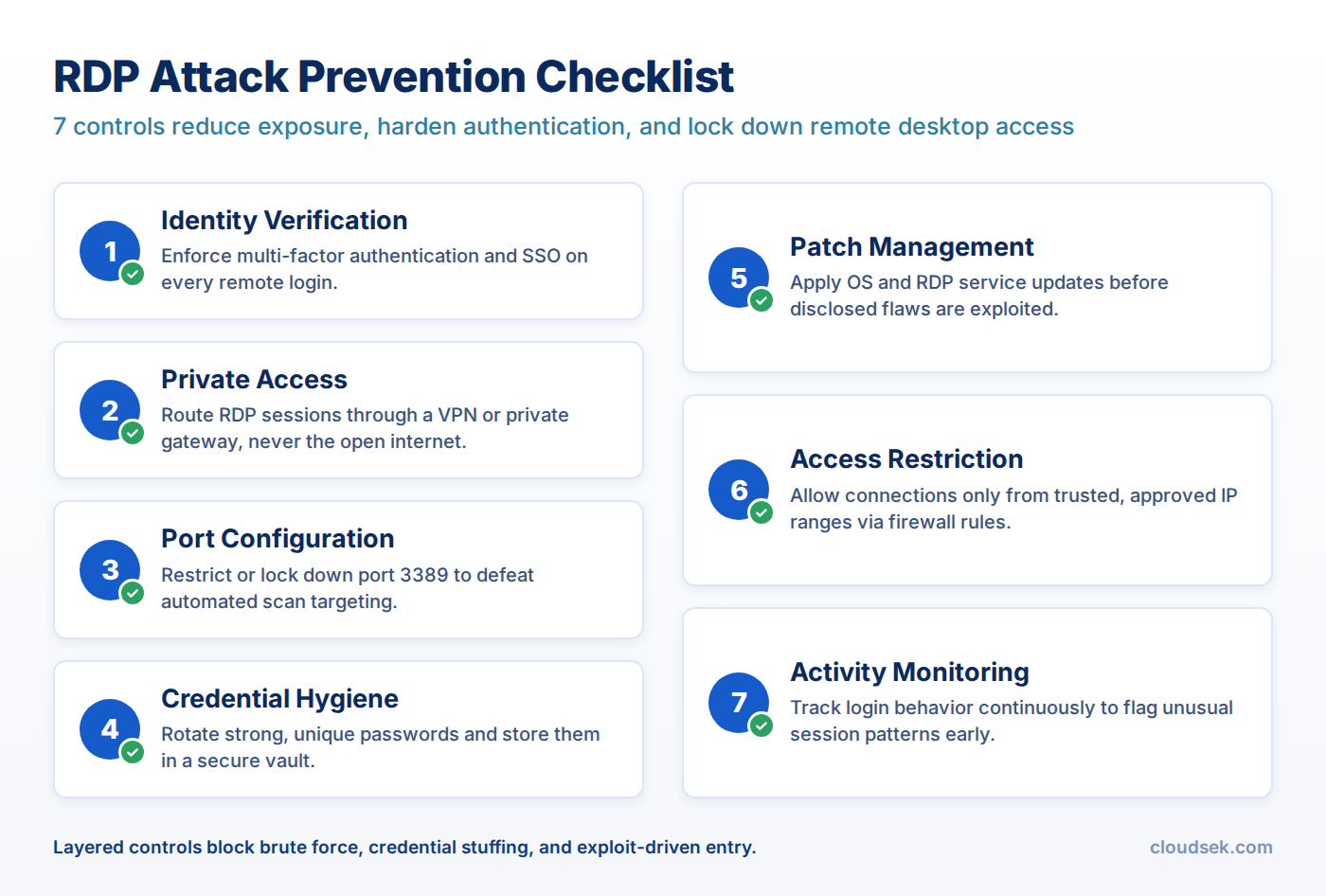
Securing remote desktop environments depends on limiting exposure, strengthening identity checks, and maintaining controlled system configurations. The measures below cover the baseline controls every RDP deployment needs.
Identity Verification. Additional verification layers ensure login does not rely on a single credential. Multi-factor authentication and Single Sign-On (SSO) strengthen identity control and minimize risks linked to compromised credentials.
Private Access. Remote connections routed through secure networks prevent direct exposure to the public internet. VPNs or private gateways create a controlled path that lowers visibility to external scanning activity.
Port Configuration. Default communication channels can be modified or restricted to avoid predictable targeting. Locking down or limiting port 3389 reduces exposure to automated scans.
Credential Hygiene. Strong password management practices lower risks linked to reused or weak credentials. Secure storage and regular updates improve overall account security.
Patch Management. Timely updates close known security gaps present in operating systems and services. Applying patches prevents exploitation of publicly disclosed vulnerabilities.
Access Restriction. Limiting remote connectivity to trusted users and defined environments controls unnecessary exposure. Proper firewall rules ensure only approved IP addresses can initiate connections.
Activity Monitoring. Continuous tracking of login behavior and system activity helps identify unusual patterns. Monitoring tools support faster detection and response to potential security incidents.
Securing RDP Infrastructure with CloudSEK XVigil
CloudSEK XVigil reduces Remote Desktop Protocol (RDP) risk by finding reachable services, open TCP 3389 ports, weak gateway configurations, and leaked remote access credentials before they become usable attack paths. The platform connects surface intelligence with deep and dark web visibility, giving security teams a clearer view of where remote desktop exposure intersects with credential theft.
For external attack surface management, it maps internet-reachable assets linked to an organization’s digital footprint and highlights systems where RDP may be visible. It also tracks dark web forums, Telegram channels, stealer logs, and malware dumps for compromised Active Directory and remote desktop credentials that are often used for initial entry.
Ransomware-focused intelligence adds context by tracking tactics, techniques, and procedures connected to RDP abuse. Findings can be correlated with active CVEs, outdated gateways, risky services, and likely attack paths, helping teams prioritize remediation before exposure turns into compromise.
Frequently Asked Questions
Is RDP only used for screen sharing?
No, RDP does more than transmit a remote screen. It can also carry keyboard input, mouse activity, clipboard data, licensing information, device communication, and other session data through virtual channels.
What protocol is RDP based on?
RDP is based on the T.120 family of protocol standards, which were designed for real-time multipoint communication. Microsoft extended this foundation to support remote desktop sessions, data channels, encryption, and interactive input.
What are RDP virtual channels?
RDP virtual channels are separate data paths inside a remote desktop connection. They can carry different types of information, such as presentation data, keyboard and mouse activity, serial device communication, licensing details, and encrypted session data.
Does RDP use TCP/IP?
Yes, modern RDP commonly runs over TCP/IP, with port 3389 commonly associated with remote desktop communication. Older Microsoft documentation also notes that RDP was designed to support different network topologies and LAN protocols, but current practical use is mainly tied to TCP/IP.
What is MCS in RDP?
MCS, or Multipoint Communication Service, helps manage data channels inside the RDP stack. It handles tasks such as channel assignment, data segmentation, priority levels, and multiplexing data onto predefined virtual channels.
What is GCC in RDP?
GCC, or Generic Conference Control, helps manage multiple channels and session connections in the RDP architecture. It works with MCS to support session creation, deletion, and resource control inside the protocol stack.
Network security monitoring (NSM) collects and analyzes network data to catch intrusion prevention misses. Data types, deployment, tools, and encryption covered.
Application security (AppSec) finds and fixes software vulnerabilities across the development lifecycle. Coverage spans testing tools, OWASP risks, and practices.
.avif)